
Table of Contents
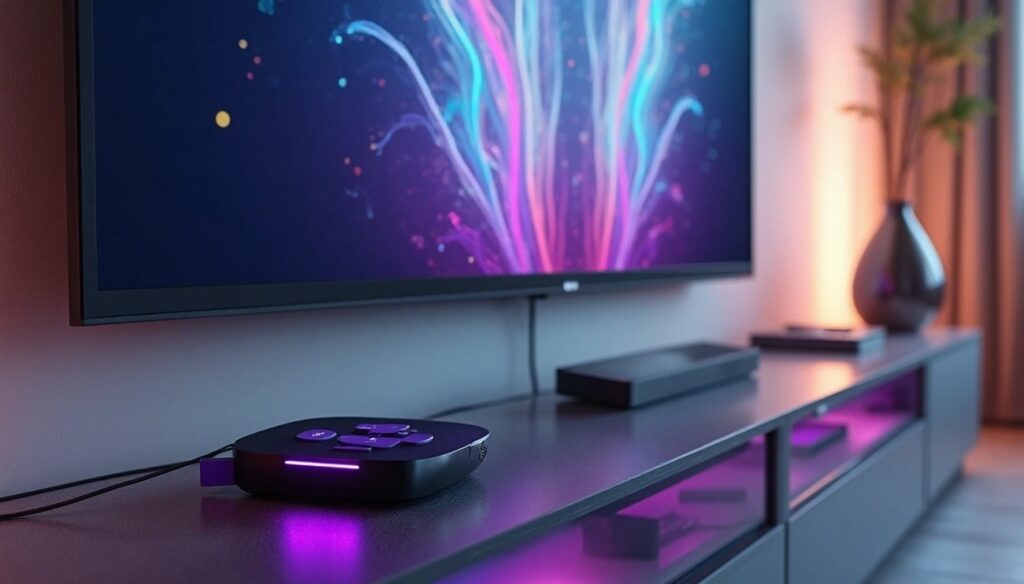
Roku Smarters Player provides a convenient solution for streaming enthusiasts who want to access IPTV content on their Roku devices in 2025. Setting up IPTV services on Roku has traditionally been challenging due to platform limitations. However, with the right approach and tools, you can unlock thousands of channels and on-demand content through this versatile player.
This comprehensive guide walks you through everything you need to know about Roku Smarters Player. Specifically, you’ll learn what makes this player unique, how to prepare your device, and the exact steps for installation. Furthermore, we cover alternative methods for enjoying IPTV on Roku and recommend reliable services to enhance your streaming experience. Whether you’re a streaming novice or tech-savvy user, this guide ensures you’ll have Roku Smarters Player up and running quickly .
What is Roku Smarters Player and How It Works
IPTV technology has changed how we consume television content, moving away from traditional satellite and cable systems toward internet-based delivery. IPTV stands for Internet Protocol Television, which delivers television content over internet connections rather than through conventional broadcast methods . This approach offers greater flexibility, faster access, and a more versatile viewing experience compared to traditional TV services .
Understanding IPTV and Roku compatibility
IPTV services stream live TV channels, movies, and on-demand content directly through your internet connection . What makes this technology particularly attractive is its affordability, access to international channels, and customizable viewing options . Additionally, IPTV channels typically come in high-definition resolution, ensuring you don’t sacrifice quality when switching from traditional services .
Roku Smarters Player is relationship with IPTV is somewhat complicated. Unlike Android TV or Amazon Firestick, Roku doesn’t offer direct support for many IPTV apps . This is primarily because Roku Smarters Player operates on a closed system that limits the ability to sideload third-party applications—the typical method for accessing most IPTV services .
Nevertheless, several options exist for IPTV enthusiasts who own Roku devices. To use Roku Smarters Player , you need three essential components: a Roku device, a stable internet connection, and a subscription to an IPTV service provider . More specifically, you’ll need a service that provides either an M3U URL or Xtream Code to access your content options .
While not all Roku devices are compatible with every IPTV solution, various workarounds make it possible to enjoy IPTV content even without official app support . The key is finding compatible tools or mirroring techniques that bridge the gap between your IPTV subscription and Roku device .
Why Roku Smarters Player is different from other IPTV apps
Roku Smarters Player stands out as a premier media player application for Roku users seeking to stream live television and video-on-demand content . Unlike many alternatives, it features a straightforward interface that makes navigation intuitive even for those new to IPTV streaming.
The application’s versatility is among its most notable strengths. IPTV Smarters Pro supports various playlist formats, including M3U and JSON, making it compatible with numerous streaming services . This flexibility allows users to switch between different IPTV providers without needing to install multiple applications.
Another distinction is the application’s streaming performance. Roku Smarters Player delivers smooth, uninterrupted viewing experiences thanks to its support for various streaming protocols . This technical advantage translates to fewer buffering issues and higher quality playback compared to some competing applications.
For those concerned about personalization, IPTV Smarters Pro offers customization options that let you tailor the viewing experience to your preferences . This level of control isn’t always available in other IPTV applications for Roku.
After installation and launching the app, you’ll simply need to log in using your IPTV credentials—either through the Xtream Codes API or by entering an M3U Playlist URL . Once authenticated, the application automatically loads all available TV channels and content from your provider, creating a seamless transition from setup to streaming .
Preparing Your Roku Smarters Player for Installation
Before diving into the installation process for Roku Smarters Player, proper preparation of your device is essential. Setting up the groundwork correctly ensures a smooth installation experience and helps avoid common technical pitfalls along the way.
Check device compatibility
First and foremost, verify that your Roku Smarters Player meets all system requirements for running IPTV Smarters Player. Not all Roku models support third-party applications equally well. Your device should have:
- A compatible operating system version
- Sufficient storage space for the application
- Adequate processing capabilities
According to official recommendations, your Roku needs stable internet connectivity for optimal performance. A high-speed connection is crucial since streaming video content demands consistent bandwidth. Prior to installation, test your network speed to confirm it can handle video streaming without buffering issues.
Moreover, check if your Roku has enough available storage. While the IPTV Smarters Pro application itself doesn’t require extensive space, having additional storage helps ensure smooth operation once you begin accessing content libraries.
Enable Developer Mode on Roku
In order to install IPTV Smarters Player, which isn’t available through the official Roku Channel Store, you must activate Developer Mode on your device. This special mode allows sideloading of applications not found in the standard channel lineup.
Follow these precise steps to enable Developer Mode:
- On your Roku remote, press the Home button three times
- Press the Up button twice
- Press Right once
- Press Left once
- Press Right once
- Press Left once
- Press Right once
If entered correctly, the Developer Options menu will appear on your screen. Subsequently, select “Enable installer and restart” from the options presented. Your Roku will then display the Developer Tools License Agreement – read through it and select “I Agree.”
Afterward, you’ll need to create a password for the web server that will facilitate installation. This password must be entered carefully as it’s case-sensitive. Once set, select “Set password and reboot” to complete this phase of preparation.
Note down your Roku IP address
The final preparatory step involves identifying your Roku’s IP address, which serves as the connection point between your computer and the Roku device during installation.
The simplest method for finding your IP address is through the Developer Options screen that appears after entering the button sequence above. The address will be clearly displayed – write it down precisely as shown.
Alternatively, you can locate your IP address through your Roku’s regular menu system:
- Press the Home button on your remote
- Navigate to Settings > Network
- Select About
Your device’s IP address will be listed among other network information. Record this address exactly as displayed, including all periods and numbers.
For situations where you cannot access your Roku menus, you might find the IP address through your router’s admin interface. Log into your router’s settings page and look for a section listing connected devices – your Roku should be identifiable there.
These preparation steps form the foundation for successfully installing and using Roku Smarters Player on your device. Each step is critical to the process and cannot be skipped if you want a functioning IPTV system.
Step-by-Step Setup of Roku Smarters Player
Setting up Roku Smarters Player involves a straightforward yet technical process that requires attention to detail. Once you’ve enabled Developer Mode as covered in the previous section, you’re ready to begin the actual installation of the IPTV Smarters app on your Roku device.
Add IPTV Smarters channel using a code
First, you need to add the IPTV Smarters channel to your Roku account through the official website:
- Open any web browser on your computer and navigate to my.roku.com
- Sign in with your Roku account credentials
- Look for the Manage account section and select Add channel with a code
- In the provided field, type exactly iptvsmarters (no spaces or capital letters)
- Click Add Channel to proceed
- A warning message may appear – click OK to dismiss it
- Finally, select Yes, add channel on the confirmation pop-up
This initial step registers the IPTV Smarters application with your Roku account, essentially preparing the way for the actual installation.
Download the Smarters package to your computer
Next, you’ll need to obtain the IPTV Smarters installation package on your computer:
- Visit one of these trusted sources to download the package:
- The official IPTV Smarters website
- Trusted repository sites that host the file
- Once the download begins, save the file to an easily accessible location on your computer (such as your Desktop)
- Make note of where you saved the file as you’ll need to locate it in the next step
This file contains the actual application that will be uploaded to your Roku device. The package size is typically small and downloads quickly on most internet connections.
Upload and install the package via browser
Finally, transfer the downloaded package to your Roku Smarters Player through the developer web interface:
- Open a web browser on your computer and enter the Roku IP address you noted earlier (from the Developer Mode screen)
- When prompted to sign in, enter:
- Username: rokudev
- Password: the password you created when enabling Developer Mode
- After signing in, locate and click the Upload button on the page
- Browse to find the IPTV Smarters package you downloaded, select it, and click Open
- Once the file is uploaded, click Install to begin the installation process
- Wait for the installation to complete – a success message will confirm when it’s done
- Return to your Roku device where IPTV Smarters should now appear in your channel list
- Launch the application and log in with your IPTV service credentials to start streaming
Essentially, this multi-step process works around Roku’s closed ecosystem, allowing you to install applications that aren’t available through the official Roku Channel Store. Initially, it might seem complicated, but following these steps precisely ensures a successful installation.
Once installed, the IPTV Smarters Player interface will automatically launch, prompting you for your service login details. Upon successful authentication, all your subscribed channels and content will be available for immediate streaming.
Alternative Ways to Use IPTV on Roku
Not everyone wants to go through the installation process for Roku Smarters Player. Fortunately, alternative methods exist for enjoying IPTV content on your Roku device. These options offer varying levels of convenience and functionality depending on your specific needs.
Using screen mirroring from Android or iOS
Screen mirroring allows you to project your mobile device’s display directly onto your Roku TV screen. This technology works by establishing a wireless connection between devices through your Wi-Fi network, transmitting content in real-time.
For Android users, the process is straightforward:
- Ensure both your Roku and Android device are on the same Wi-Fi network
- On Roku, navigate to Settings > System > Screen mirroring and enable it
- On your Android, swipe down for Quick Settings and tap Cast or Smart View
- Select your Roku device from the available list
iPhone users need a slightly different approach:
- Connect both devices to the same Wi-Fi network
- On Roku, go to Settings > Apple AirPlay and Homekit Settings and turn on AirPlay
- On your iPhone, open Control Center and tap Screen Mirroring
- Choose your Roku device from the list
Once connected, simply open your preferred IPTV app on your phone and watch it on the big screen.
Casting IPTV apps like TiviMate or GSE Smart IPTV
Popular IPTV players like TiviMate or GSE Smart IPTV aren’t directly available on Roku, yet you can still enjoy them through casting. Although TiviMate is primarily designed for Android, you can cast it to your Roku-connected TV after installing it on your phone.
GSE Smart IPTV offers similar functionality and is available for both iOS and Android devices. After setting up your IPTV subscription in these apps, use your device’s casting feature as described above to view content on your Roku TV.
Using legal IPTV apps from Roku Channel Store
The Roku Channel Store offers several legitimate IPTV services that provide legal streaming options:
Sling TV delivers over 50 full-HD channels with two main subscription plans: Sling Blue and Sling Orange, each with distinct channel lineups .
Philo stands out with its unlimited DVR recording capability and more than 60 channels, plus the ability to stream on up to three devices simultaneously .
YouTube TV, though relatively expensive, provides over 85 channels including sports options and unlimited cloud DVR storage. Access it through the YouTube app’s “Go to YouTube TV” option .
Hulu offers live TV with a focus on sports channels, supporting over 95 channels and providing 50 hours of cloud DVR storage .
These legal alternatives ensure you stay within copyright laws indeed providing peace of mind alongside quality entertainment options.
Best IPTV Services to Use with Roku Smarters Player
Choosing the right IPTV service for your Roku Smarters Player can make a significant difference in your streaming experience. With numerous options available, knowing which services offer the best features at reasonable prices is crucial for maximizing your entertainment options.
Top unverified IPTV services (Iconic Streams, Yeah! IPTV)
Unverified IPTV services require sideloading onto your Roku device yet offer expansive content libraries at competitive prices. Iconic Streams stands out with over 9,000 channels and 110 servers worldwide . This service delivers ultra-HD quality movies and TV channels, featuring 6,000 live channels and 3,000 video-on-demand options with support for up to three devices simultaneously . Notably, they accept both PayPal and Bitcoin payments.
Yeah! IPTV represents another solid option, supporting standard, high, and full high-definition channels . Their packages include access to over 6,000 live TV and exclusive sports channels . Overall, the service requires additional payment for multiple simultaneous connections.
Top legal IPTV apps (Sling TV, Philo, YouTube TV)
For those preferring official channels, several legal options exist. Sling TV offers over 50 full-HD channels through two distinct subscription plans: Sling Blue and Sling Orange . These plans feature different channel lineups without requiring long-term contracts.
Philo provides exceptional value at just $25.00 monthly for 70+ channels and unlimited cloud DVR storage . Despite lacking sports channels, it allows streaming on up to three devices simultaneously with a seven-day free trial .
YouTube TV, albeit more expensive, delivers over 85 channels including sports options and unlimited cloud DVR storage . Accessible through the YouTube app on Roku, it supports up to three devices at once .
How to choose a reliable IPTV provider
Firstly, verify device compatibility before purchasing any package . Secondly, ensure your internet connection provides at least 15MB download speed for lag-free viewing . Additionally, check available services and channel lineups to confirm they match your viewing preferences.
Furthermore, consider factors like streaming quality, customer support availability, and payment options. Evidently, the IPTV market’s rapid growth—valued at $72.24 billion in 2020 and projected to reach $194.21 billion by 2026 —indicates increasing competition and improving service quality.
Conclusion
Roku Smarters Player opens a world of streaming possibilities for users seeking IPTV content on their Roku Smarters Player devices. Throughout this guide, we’ve explored the fundamentals of IPTV technology and addressed Roku’s unique compatibility challenges. The player stands out among competitors due to its intuitive interface, versatile playlist format support, and exceptional streaming performance .
Setting up Roku Smarters Player certainly requires several technical steps. First, you must verify device compatibility and enable Developer Mode. Next, you’ll need to add the channel using a code, download the package, and finally install it through your browser. Following these instructions carefully guarantees a smooth installation process.
Alternative methods exist for those preferring different approaches. Screen mirroring from mobile devices offers a simpler solution without complex installations. Casting from dedicated IPTV apps like TiviMate presents another viable option. Legal alternatives from the Roku Channel Store, though limited in customization, provide peace of mind regarding copyright concerns.
Choosing the right IPTV service significantly impacts your streaming experience. Unverified services like Iconic Streams boast extensive channel libraries but require sideloading. Conversely, legal options such as Sling TV and YouTube TV offer smaller but reliable channel selections through official channels.
Roku Smarters Player transforms any standard Roku device into a powerful IPTV streaming solution. Despite Roku’s closed ecosystem creating initial hurdles, this comprehensive setup proves worthwhile for accessing thousands of channels and on-demand content. Armed with this guide, you now possess all necessary knowledge to maximize your streaming potential and enjoy a virtually limitless entertainment experience.